
アプリ開発を始めたいけれど、
「どんなアプリを作ればいいの?」
「難しいことはできない…」
そんな方におすすめなのが 電卓アプリ です。
電卓は機能がシンプルで実装しやすく、実際に作って公開することで「アプリ開発からストアリリースまでの一連の流れ」を無理なく体験できます。
今回は、初心者向けに電卓アプリをゼロから作り、最終的にストア公開するところまでを丁寧に解説します。
開発環境を整える
- 作業先:ローカルPC
準備するもの: - Node.js または Android Studio / Xcode
- コードエディタ(Visual Studio Code 推奨)
- 端末実機(iPhone / Android)
- 端末実機にExpo Goアプリ
- (クロス開発なら React Native / Flutter でもOK)
初心者は React Native + Expo を使うと簡単です。
# 作業先で
npx create-expo-app@latest calc-app
cd calc-app- npx create-expo-app@latest calc-app
最新テンプレで新規Expoプロジェクトを作成(calc-app フォルダができる) - cd calc-app
作成したプロジェクトディレクトリへ移動
※ 起動する時は npx expo start -c
# ---------------- npx create-expo-app@latest calc-app ----------------
# 新規Expoプロジェクトを最新テンプレで作成(yで続行)
D:\calc_application>npx create-expo-app@latest calc-app
Need to install the following packages:
create-expo-app@3.5.3
Ok to proceed? (y) y

# ---------------- cd calc-app ----------------
# 作成したプロジェクトへ移動
D:\calc_application>cd calc-appnpx create-expo-app@latest calca-ppを実行します。
y を押してEnterすると、必要なファイルのダウンロードとライブラリのインストールが自動で行われます。
途中で「deprecated」などの警告が出ても問題ありません。
最後に✅ Your project is ready!と表示されれば、プロジェクト作成は完了です。
その後は、「プロジェクト作成が終わったあとに、どうやってアプリを動かすか」を案内しています。
npm WARN deprecated=古い下位依存(inflight、rimraf@3、glob@7 など)への注意。エラーではなく動作に影響なし。Expo/React Nativeの依存が更新されれば自然に消えます。
npm notice が表示されたら
npm notice New major version of npm available! 10.8.1 -> 11.5.2
npm notice Changelog: https://github.com/npm/cli/releases/tag/v11.5.2
npm notice To update run: npm install -g npm@11.5.2👉 これは「npm(パッケージ管理ツール)の新しいバージョンがありますよ」という通知です。
- 現在のバージョン(例:npm 10系)でも Expo の開発やアプリの実行は問題なくできます。そのまま進めて大丈夫です。
- 最新版にしたい場合のみ、Node.js本体を最新に更新してください。npm単体で11系に上げようとするとエラーになることがあります。
node -v
npm -v
npm install -g npm@11.5.2気にするべきケースだけ
- インストール失敗・ビルド失敗・実行時エラーが出たとき
- 重大な脆弱性が出たとき(found 0 vulnerabilities でなければ対応検討)
※ npm自体のアップデート通知は無視でOK。どうしても上げるなら Node の対応バージョン条件を満たしてからにしてください。
電卓を表示する画面
この章では、電卓のメイン画面を表示します。コードはプロジェクト直下ではなく、app/(tabs)/index.tsx にそのまま貼り付けてください。
保存後に npm start(または npx expo start -c)で起動すると、ボタン入力で計算できる電卓が画面中央に表示されます。
Expo Routerについて(補足)
新しいExpoテンプレートでは、従来の App.js は使わず、Expo Router が標準です。
エントリーファイルは app/index.tsx で、タブ画面は app/(tabs)/index.tsx などルーティング構成になっています。
以降のコードはすべて app/(tabs)/index.tsx に貼り付けてください。
(例:D:\calc_application\calc-app\app\(tabs)\index.tsx)
import { useMemo, useState } from "react";
import { SafeAreaView, View, Text, Pressable, StyleSheet } from "react-native";

const buttons = [
  ["AC", "C", "%", "÷"],
  ["7", "8", "9", "×"],
  ["4", "5", "6", "−"],
  ["1", "2", "3", "+"],
  ["0", ".", "="],
];

export default function App() {
  const [display, setDisplay] = useState("0");
  const [prev, setPrev] = useState(null);
  const [op, setOp] = useState(null);
  const [justCalculated, setJustCalculated] = useState(false);

  const formattedDisplay = useMemo(() => {
    // 桁区切り(整数部のみ)
    if (!isFinite(Number(display))) return "Error";
    const [int, frac] = display.split(".");
    const withSep = int.replace(/\B(?=(\d{3})+(?!\d))/g, ",");
    return frac != null ? `${withSep}.${frac}` : withSep;
  }, [display]);

  const inputDigit = (d) => {
    setDisplay((cur) => {
      if (justCalculated) {
        setJustCalculated(false);
        return d === "." ? "0." : d;
      }
      if (d === ".") {
        if (cur.includes(".")) return cur;
        return cur + ".";
      }
      if (cur === "0") return d;
      return cur + d;
    });
  };

  const clearAll = () => {
    setDisplay("0");
    setPrev(null);
    setOp(null);
    setJustCalculated(false);
  };

  const clearEntry = () => {
    setDisplay("0");
  };

  const percent = () => {
    const n = Number(display);
    if (!isFinite(n)) return;
    setDisplay(String(n / 100));
  };

  const setOperator = (nextOp) => {
    // 直前に計算した直後に演算子を押した場合は、prevは維持
    if (prev == null || (prev != null && !op) || (!justCalculated && op == null)) {
      setPrev(Number(display));
      setDisplay("0");
      setOp(nextOp);
      setJustCalculated(false);
      return;
    }
    // すでに演算子が入っている場合は一旦計算してチェーン
    equals(nextOp);
  };

  const calc = (a, b, operator) => {
    switch (operator) {
      case "+": return a + b;
      case "−": return a - b;
      case "×": return a * b;
      case "÷": return b === 0 ? NaN : a / b;
      default: return b;
    }
  };

  const equals = (nextOp = null) => {
    if (op == null || prev == null) {
      // 単独 "=" は何もしない(または justCalculated を立て直す)
      setJustCalculated(true);
      return;
    }
    const current = Number(display);
    const res = calc(prev, current, op);
    if (!isFinite(res)) {
      setDisplay("Error");
      setPrev(null);
      setOp(null);
      setJustCalculated(true);
      return;
    }
    const s = String(res);
    setDisplay(s);
    setPrev(nextOp ? res : null);
    setOp(nextOp);
    setJustCalculated(true);
  };

  const onPress = (label) => {
    if (/\d/.test(label)) return inputDigit(label);
    if (label === ".") return inputDigit(".");
    if (label === "AC") return clearAll();
    if (label === "C") return clearEntry();
    if (label === "%") return percent();
    if (label === "=") return equals();
    // 演算子
    return setOperator(label);
  };

  return (
    <SafeAreaView style={styles.root}>
      <View style={styles.phoneFrame}>
        <View style={styles.displayWrap}>
          <Text style={styles.displayText} numberOfLines={1} adjustsFontSizeToFit>
            {formattedDisplay}
          </Text>
        </View>

        {/* ボタン群 */}
        <View style={styles.rows}>
          {buttons.map((row, i) => (
            <View key={i} style={styles.row}>
              {row.map((label) => (
                <CalcButton
                  key={label}
                  label={label}
                  type={getType(label)}
                  wide={label === "0" && i === buttons.length - 1}
                  onPress={() => onPress(label)}
                />
              ))}
              {/* 4列制御:最下段は「0 . =」で3つ、他段は4つ */}
              {i === buttons.length - 1 ? null : null}
            </View>
          ))}
        </View>
      </View>
    </SafeAreaView>
  );
}

function getType(label) {
  if (label === "AC" || label === "C" || label === "%") return "func";
  if (label === "=") return "equal";
  if (["÷", "×", "−", "+"].includes(label)) return "op";
  return "num";
}

function CalcButton({ label, type = "num", wide = false, onPress }) {
  return (
    <Pressable
      onPress={onPress}
      android_ripple={{ borderless: false }}
      style={({ pressed }) => [
        styles.btnBase,
        wide && styles.btnWide,
        type === "op" && styles.btnOp,
        type === "func" && styles.btnFunc,
        type === "equal" && styles.btnEqual,
        pressed && styles.btnPressed,
      ]}
    >
      <Text
        style={[
          styles.btnText,
          type === "func" && styles.btnTextFunc,
          type === "equal" && styles.btnTextEqual,
        ]}
      >
        {label}
      </Text>
    </Pressable>
  );
}

const styles = StyleSheet.create({
  root: {
    flex: 1,
    backgroundColor: "#0b0f14", // ダーク背景
    alignItems: "center",
    justifyContent: "center",
  },
  phoneFrame: {
    width: "92%",
    maxWidth: 420,
    aspectRatio: 9 / 16,
    borderRadius: 28,
    padding: 16,
    backgroundColor: "#0f141a",
    borderWidth: 1,
    borderColor: "rgba(255,255,255,0.05)",
    shadowColor: "#000",
    shadowOpacity: 0.3,
    shadowRadius: 18,
    elevation: 12,
  },
  displayWrap: {
    flex: 3,
    borderRadius: 20,
    paddingHorizontal: 18,
    paddingVertical: 12,
    alignItems: "flex-end",
    justifyContent: "flex-end",
    backgroundColor: "rgba(255,255,255,0.03)",
  },
  displayText: {
    fontSize: 64,
    fontWeight: "600",
    color: "#e9f1ff",
  },
  rows: {
    flex: 7,
    marginTop: 16,
    gap: 12,
  },
  row: {
    flex: 1,
    flexDirection: "row",
    gap: 12,
  },
  btnBase: {
    flex: 1,
    borderRadius: 18,
    alignItems: "center",
    justifyContent: "center",
    backgroundColor: "#1a2330",
    // 影
    shadowColor: "#000",
    shadowOpacity: 0.25,
    shadowRadius: 8,
    elevation: 6,
  },
  btnPressed: {
    opacity: 0.8,
    transform: [{ scale: 0.98 }],
  },
  btnWide: {
    flex: 2, // 最下段の「0」を横に広く
  },
  btnOp: {
    backgroundColor: "#24334a",
    borderWidth: 1,
    borderColor: "rgba(98,153,255,0.35)",
  },
  btnFunc: {
    backgroundColor: "#1d2a3a",
    borderWidth: 1,
    borderColor: "rgba(255,255,255,0.08)",
  },
  btnEqual: {
    backgroundColor: "#3b82f6",
  },
  btnText: {
    fontSize: 26,
    fontWeight: "600",
    color: "#e6ecf5",
  },
  btnTextFunc: {
    color: "#b8c6d8",
  },
  btnTextEqual: {
    color: "#0b0f14",
  },
});これで、タブ配下のトップ画面に電卓が表示されます。
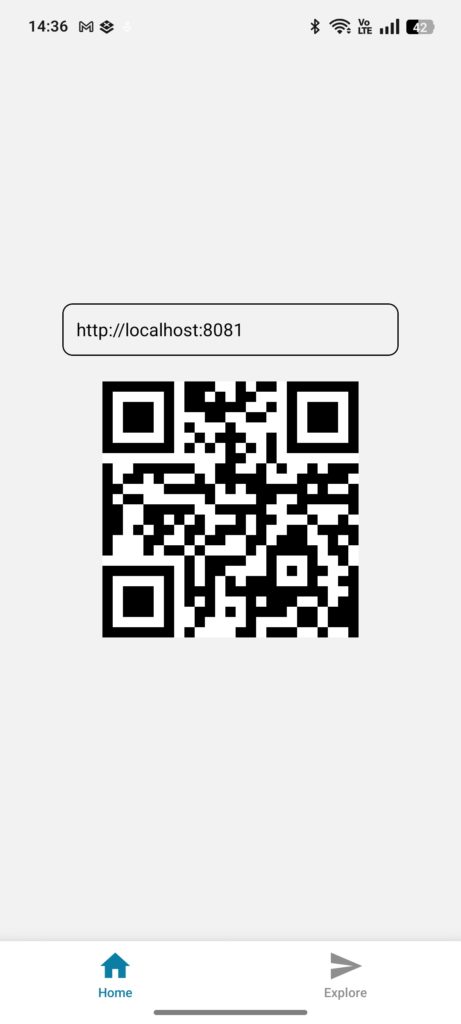
Webで軽く試すなら、起動後(npx expo start)にhttp://localhost:8081にアクセスして下さい。スマホ実機は、ターミナルのQRを Expo Go で読み取ればOKです。
実機で動かしてみる
作業先:実機(iPhone / Android)
Expo を使えば、スマホに Expo Go アプリを入れるだけで、すぐに電卓をテストできます。
手順
- スマホ準備
- App Store / Google Play から Expo Go をインストール
- スマホとPCを同一Wi-Fiに接続
- PCで開発サーバー起動(キャッシュクリア推奨)
# ---------------- npx expo start -c ----------------
# (起動時)開発サーバーをキャッシュクリアで起動
# Web: ターミナルで w / スマホ: Expo GoでQRを読み取る
D:\calc_application\calc-app>npx expo start -c- 起動後の操作
- Web 試用:http://localhost:8081/にアクセス → ブラウザが開いて電卓が表示
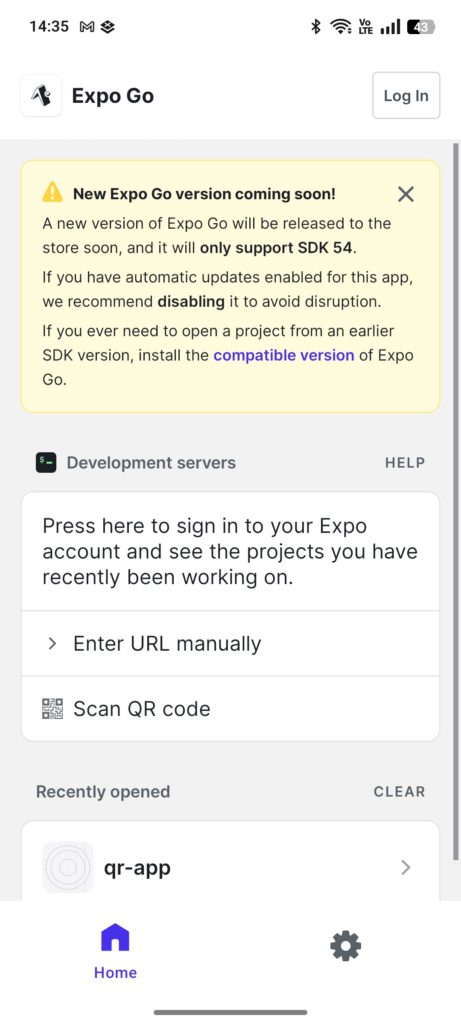
- 実機テスト:スマホでExpo Goを起動。QRコードを読み取る → 即起動
例(Windows のパス例):D:\calc_application\calc-app> npx expo start -c
Web、実機共にエラーになる時は、Ctrl+cで終了の上、再度、npx expo start -cで起動してください。
npm start の出力
# ---------------- npx expo start -c ----------------
# (起動時)開発サーバーをキャッシュクリアで起動
# Web: ターミナルで w / スマホ: Expo GoでQRを読み取る
D:\calc_application\calc-app>npx expo start -c
Starting project at D:\qr_application\qr-app
Starting Metro Bundler
warning: Bundler cache is empty, rebuilding (this may take a minute)
The following packages should be updated for best compatibility with the installed expo version:
react-native@0.79.6 - expected version: 0.79.5
Your project may not work correctly until you install the expected versions of the packages.
▄▄▄▄▄▄▄▄▄▄▄▄▄▄▄▄▄▄▄▄▄▄▄▄▄▄▄
█ ▄▄▄▄▄ █▄▀▀▄▄▄▀█▄█ ▄▄▄▄▄ █
█ █ █ ███▄█ ▀▀▀█ █ █ █
█ █▄▄▄█ ██▄▀▄▀ ████ █▄▄▄█ █
█▄▄▄▄▄▄▄█ █ ▀▄▀ █▄█▄▄▄▄▄▄▄█
█▄ ▀ ▀▄▀█ ▄▄▀▀█ ▀█▄█▀█▀▀▄█
██▀ ▄ █▄▀▄▀ ▀█▄▄ ▀███▄▀▀ █
█ ▀██▀▄▄ ▀ █▄▄▀▄ █ ▄▀▀█▀ ██
█ ▄█ ▀▄▄██▄█ ▄▄▀ ▄▀ ██▄▀ █
█▄█▄█▄█▄█ ▄█▀▀ █ ▄▄▄ ▄▀▄█
█ ▄▄▄▄▄ ██▀ ▄▀ █ █▄█ ██▀▄█
█ █ █ █ █▄██▄ ▄ ▄ █ █
█ █▄▄▄█ █▀█ █▄█ ▄█▀▀▄█ █
█▄▄▄▄▄▄▄█▄█▄█▄▄▄▄▄▄█▄▄███▄█
› Metro waiting on exp://192.168.11.2:8081
› Scan the QR code above with Expo Go (Android) or the Camera app (iOS)
› Web is waiting on http://localhost:8081
npm start を実行すると、Expo の開発サーバー(Metro Bundler)が起動します。
ターミナルに表示される内容の意味は次の通りです。
- Starting project at D:\qr_application\qr-app
→ このフォルダのプロジェクトを起動しています。 - Starting Metro Bundler
→ React Native の開発サーバー(Metro)が立ち上がりました。
初回はビルドが重く、2回目以降は高速になります(キャッシュが効くため)。 - 互換性の警告(例:react-native@0.79.6 – expected 0.79.5)
→ 依存関係の“期待バージョン”と“実インストール”に差があります。
基本は無視してOKです。問題が出たら npx expo install で揃えれば直ります。 - ブロック文字のQRコード(ASCIIアート)
→ これをスマホで読み取ると実機で起動できます。 - › Metro waiting on exp://192.168.11.2:8081
→ LAN 経由の接続URLです。PCとスマホが同一Wi-Fiである必要があります。
同一ネットワークにできない場合は、shift + m → “Tools” から Connection: tunnel に切替えると外からでも繋がります。 - › Web is waiting on http://localhost:8081
まとめ
- 今回やったこと:
- 開発環境の準備 → 2) create-expo-app で新規作成 → 3) タブ画面に電卓UI/ロジック実装 → 4) Expo Go で実機確認 → 5) npm notice と npm start の出力の読み方を把握。
- ポイント整理
- 依存の互換警告(expected version など)は、問題が出た時だけ npx expo install で揃える。
- 実機テストは 同一Wi-Fi+Expo Go が最短。キー操作が効かない場合は npm run web/android を直接実行。
- 初回ビルドは重いが、2回目以降はキャッシュで高速化。
- ここまでの到達点:
ローカルで電卓が表示・入力・四則計算まで動作し、Web/実機で確認できる状態。